Introduction #
This weekend, I came across this tweet from Phillipe Charière that made me want to play around with my tablet and push it a little further ⌨️
I have a Lenovo tab pad 11 pro tablet with a keyboard and a stylus. I mainly use it for drawing diagrams and when I’m on the go. Quickly, I felt limited by the Android applications. We have a compact all-in-one mini laptop, so why limit ourselves to just Android apps?
That’s why I started with termux, which uses the magic of PRoot to launch shells directly on Android. The next step beyond the terminal for me was being able to run my everyday IDE vscode directly locally. In the past, I have used gitpod, but it quickly shows its limitations on the train.
And for the past few months, I have been experimenting with nix with the transition of my laptop to nixos, as well as termux. The major limitation I felt with termux was the choice of packages. What better than nixpkgs to have a wide range of choices?
Installing nix-on-droid #
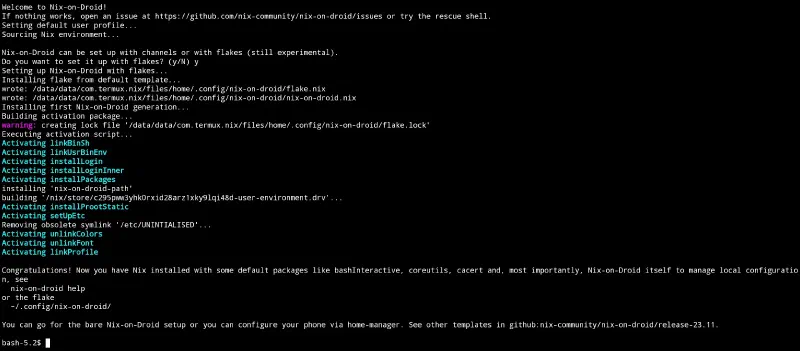
Nix-on-droid, nothing could be simpler. Just install the application from fdroid. Once launched, it offers to install nix on our device. For my use, I have enabled flake support. And from now on, we will need a little patience.
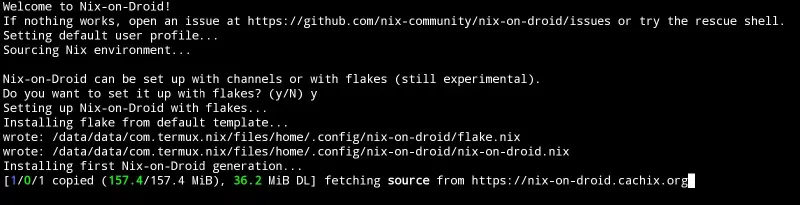
⚠️ The installation can take several hours depending on the device’s power.
Package Configuration #
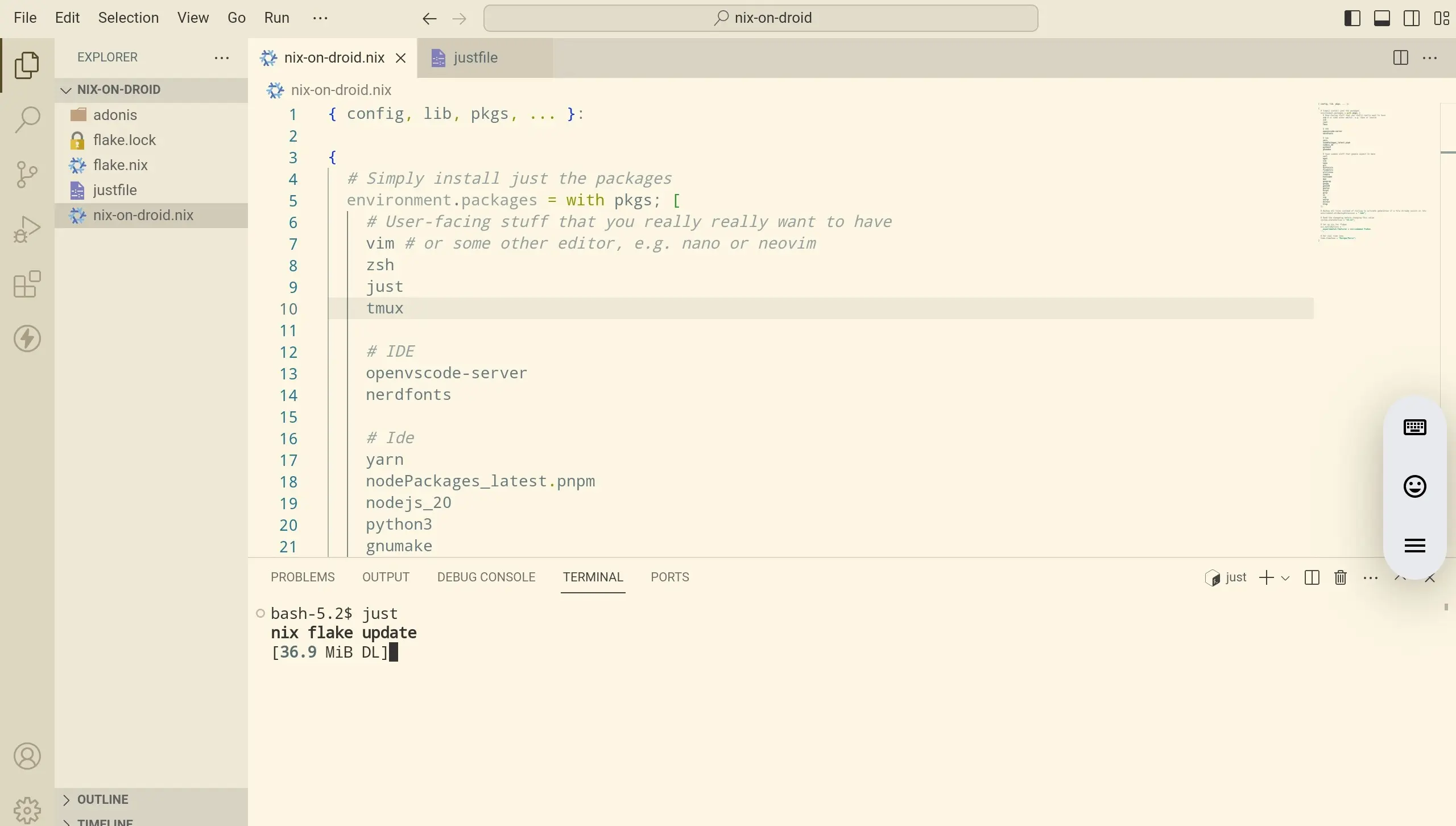
Once installed, we have access to the package manager. We can therefore install some packages. For my part, I install vscode as well as development tools. I edit the nix configuration with vi.
vi ~/.config/nix-on-droid/nix-on-droid.nixAnd I add the following packages to the configuration.
man
vim
curl
htop
nodejs_20
python3
openvscode-server
Finally, I can switch to the new nix configuration with the command nix-on-droid.
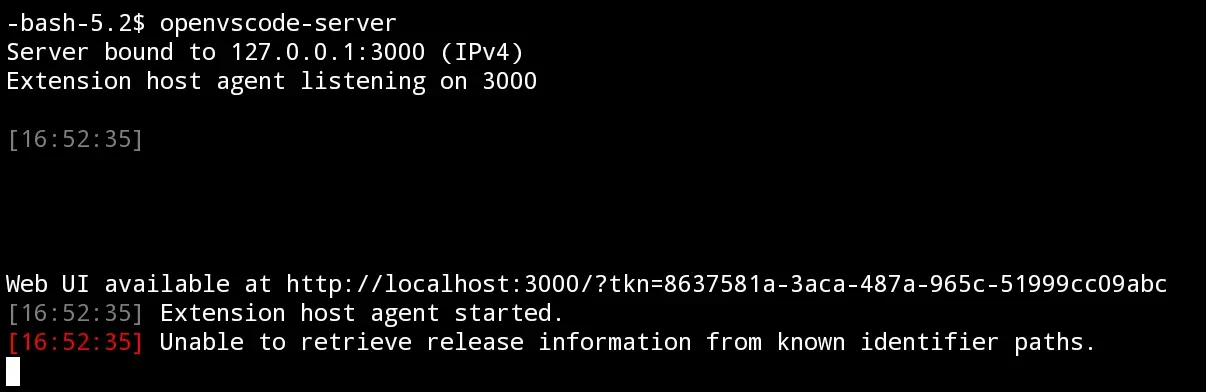
nix-on-droid switch --flake ~/.config/nix-on-droid/After a little patience during installation, the packages are now available in my shell. I launch vscode with the command openvscode-server.
And then magic, everything works 🪄
All you have to do is open the IDE with your favourite local browser by following the link.
We can even add it as an icon on our home page by installing as a PWA.
Limitations #
With this tinkering, we now have an IDE that fits in a small backpack. Perfect for continuing to tinker on vacation. However, since my tablet is not the most powerful, you can feel that the whole setup could use a bit more smoothness. Installing and updating nix packages requires a lot of patience.
I doubt I’ll use it on a daily basis, but it’s very nice for troubleshooting. And no need for root access, so it avoids having to modify the system at the risk of making it unstable.